Company
Live demo of Implementer on demo data
The Implementer live demo is an instance of the application filled with demo data about a fictional company, Alfa Metal S.A., so you can look at gates, registers, approvals and the audit trail without any real project data.
What does a 15-minute walkthrough cover?
The same path used in a scoping call.
Dashboard
Open items, overdue and upcoming dates, awaiting decisions and gate progress.
Gates
Five gates, 61 checklist items, evidence references and the baselines panel of Solution Confirmed.
Registers and permissions
The CRIM board and the risk list, with the reason shown when an action is blocked.
One change, audited
A risk that occurs creates one linked issue, and the audit trail shows who, when and from which source.
Steering group
The status report read from the registers, and the versioned documents.
Go-live or updates, and environments
The 42-criteria readiness review or the update cycles, and the environment matrix.
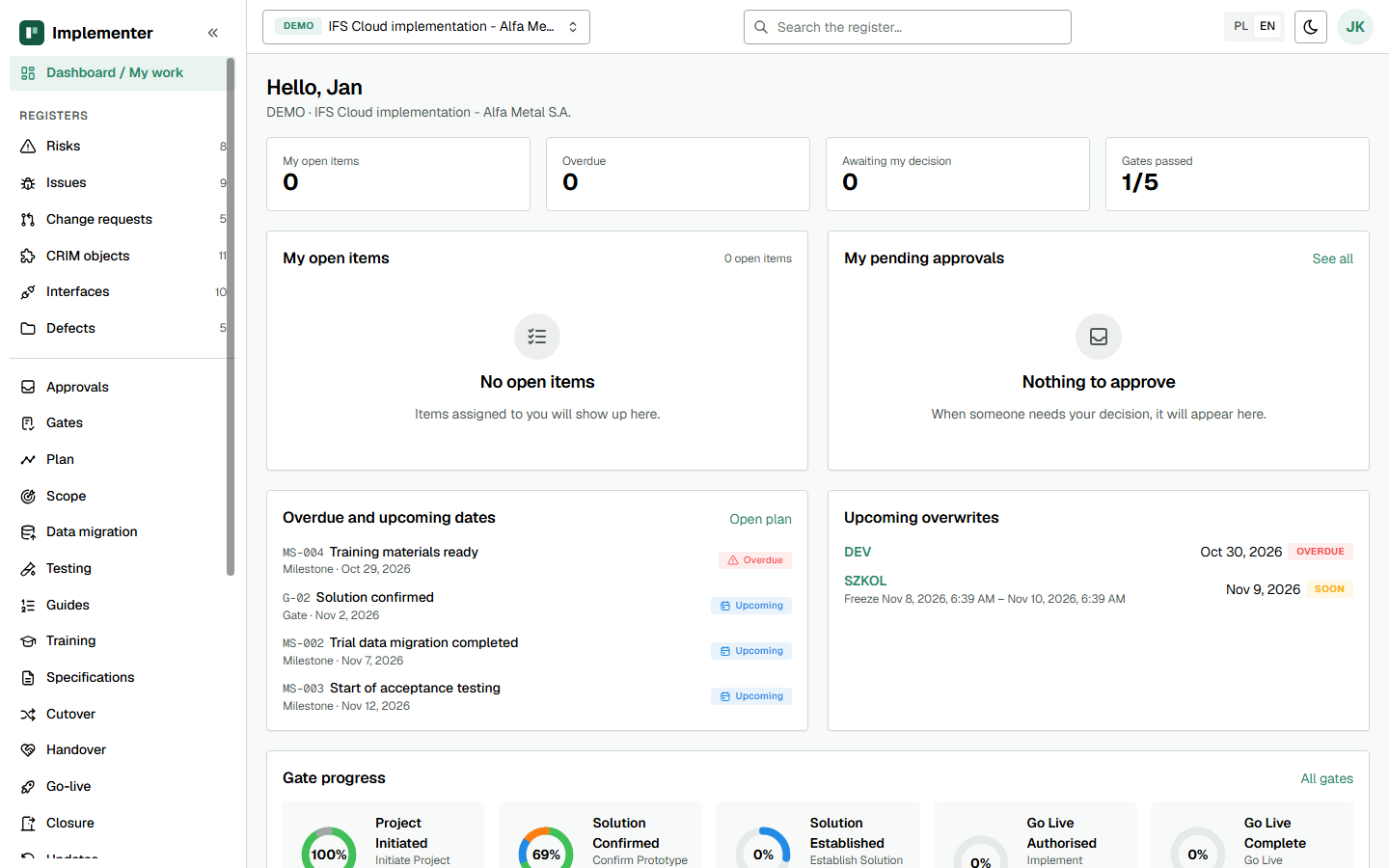
What is the live demo?
The live demo is a running Implementer instance with demo data. Everything in it is invented for the demo: the company, Alfa Metal S.A., is fictional, and the people, risks, CRIM objects and dates are not from a real project. Nothing in it touches a real IFS Cloud environment. The application is described on the product page.
How do you open it?
Use the “Open the live demo” button to reach the sign-in page of the demo. If the page asks for details you do not have, book a scoping call and the 15-minute demo shows the same path on screen.
What should you look at first?
Start with the gates: they show the idea of evidence-based readiness best. Then open the CRIM board, make a change and read it back in the audit trail. If you run a project after go-live, open the update cycles instead of the go-live review. Each view maps to a problem on the problems page.
What does the demo not show?
The demo does not show your data, your IFS Cloud environment or your Entra ID tenant. Teams notifications and the Microsoft 365 calendar connection are not proven on a production tenant, so do not judge them from the demo. For these, plan a pilot in your own infrastructure.
Can you see the AI assistant?
The assistant is an optional function switched on by an administrator, and it depends on a local model, so its availability in the demo can differ. It never approves and never changes a status. Read about it on the AI assistant page.
Is the demo the same as a customer installation?
The demo runs the same application as a customer installation, filled with demo data. A customer installation contains no marketing pages and runs in your own infrastructure with sign-in through Microsoft Entra ID. See security and trust.
What next?
Run the same path on your own project in a pilot, check pricing, or book a scoping call. Questions go to the FAQ.
Last updated: